
Everyone has filled out countless forms-order forms, registration forms, personal information forms, surveys, and so on. Even when you enter a message or article in a discussion, you are using a form. Essentially, whenever information is exchanged, it is done through a form.
Designing a form can be tedious, especially if you want to ask many questions. Suppose, for example, that you want to design an online IQ test of 50 questions. Each question has a multiple choice answer. That is a lot of form fields to place on a page. Laying the form out and aligning the fields is a task in itself. It could take you hours to complete the form.
Have no fear. In FrontPage, creating forms is a breeze. The Form Page wizard does much of the work for you. It takes care of the layout and enables you to present questions in several different categories. You think of a question, pick the category that best handles how you want to present it, assign a few variables, and away you go. You can design your IQ test in a matter of minutes.
Always create a form on a new page. After you complete the form, you can add additional content to it or copy its contents to the clipboard to paste into another page. To create a form with the Form Page wizard, use FrontPage Editor's File | New command. From the New Page dialog box, choose the Form Page wizard and click OK.
The Form Page wizard is a gem. You use it to design just about any type of form you can think of. If you know the type of form you want to design and the questions or responses you need, the rest is absolutely simple. After you choose the wizard, its introductory screen appears.
The first screen of the Form Page wizard is an introductory screen. It explains what the Form Page wizard does. You navigate forward and backward through the wizard by using the navigation buttons at the bottom of each dialog box.
Click the Cancel button to leave the Form Page wizard without
creating the page. Click the Back button to review the questions
or choices that you made in previous screens. Click the Finish
button to generate the page with the content you have chosen up
to that point. Click the Next button to proceed to the next step.
| NOTE |
In some cases, you cannot go back unless you assign a name to the group of fields for the question on which you are working. You can go back and review the question after you assign the name |
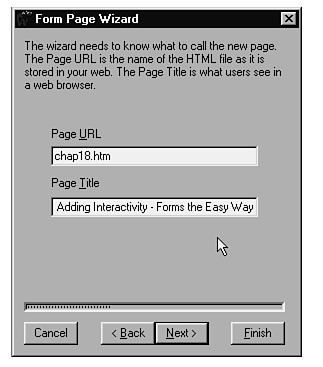
On the second screen of the Form Page wizard, shown in Figure 18.1, you enter a URL for the page and a page title.
Figure 18.1:Enter a page URL and a page title.
In the Page URL field, enter the filename of the page. Filenames are restricted to eight characters plus the .htm extension. For example, if you are designing a survey form, you might enter
survey.htm
In the Page Title field, enter the title for the page. This title appears in browsers. The title for the survey form might be
Web Site Survey
After you enter the URL and title, click Next to continue.
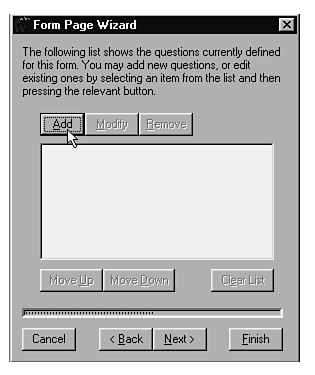
The third screen of the Form Page wizard, shown in Figure 18.2, appears next. You use it to
Figure 18.2:You can add, modify, remove, or rearrange questions.
To add a question to a form:
To modify a question:
To remove a question from the list:
| NOTE |
To remove all the questions from the list, click the Clear List button. |
To rearrange the order of the questions in the list:
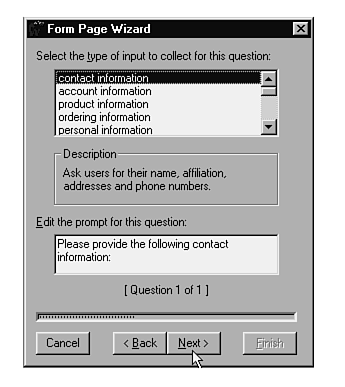
You can choose from fourteen categories for your question. They are
Based on the type of question that you select, one of fourteen screens appears. The following sections discuss options for each type of question.
Use a contact information question when you need to know how to contact the person filling out your form. Information request forms often ask for contact information. A typical prompt is Please let us know how we can contact you. Figure 18.4 shows examples of the fields available for contact information.
Figure 18.4:You can request different types of contact information.
To complete a contact information question:
| TIP |
It is most efficient-for you and for the person filling out the form-to ask for no more information than you need in response to a question. |
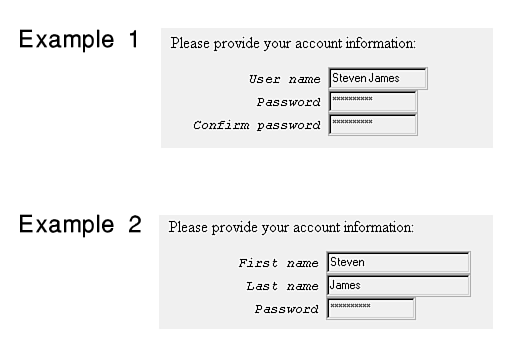
Use an account information question to obtain a user name and password. Account information questions are often used on registration forms, such as those used to gain access to a protected web. A typical prompt is Please enter your name and password in the following fields. Figure 18.5 shows examples of the options available for account information.
Figure 18.5:Account information questions ask for a user's name and password.
To complete an account information question:
Use a product information question to obtain warranty or registration information on a product. A form for this type of question might be a software registration form or a warranty service request. A typical prompt is Please enter the following information on the product for which you are requesting warranty service. Figure 18.6 shows the options available.
To complete a product information question:
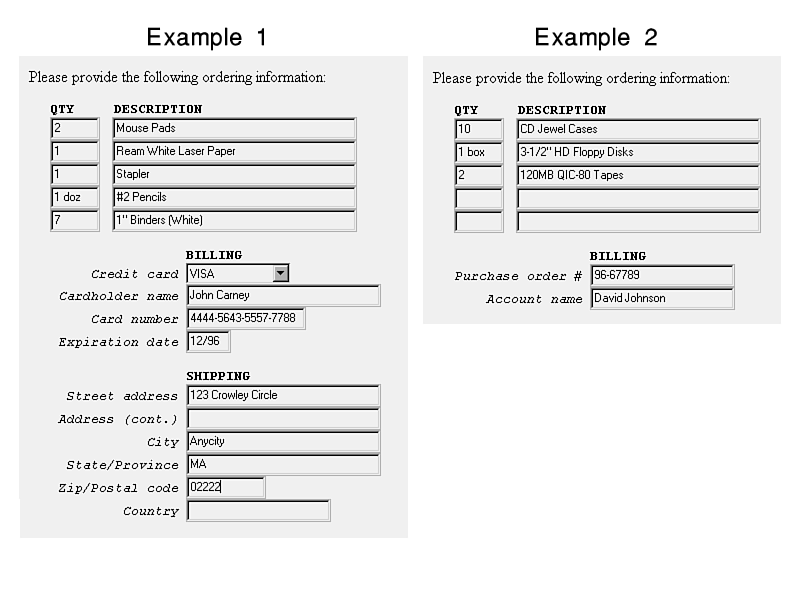
Use an ordering information question when you want users to order products online. You can create order forms easily. A typical prompt is Order your products and provide method of payment and delivery information below. Figure 18.7 shows examples of the fields for this type of question.
Figure 18.7:Use ordering information in an online order form.
To complete an ordering information question:
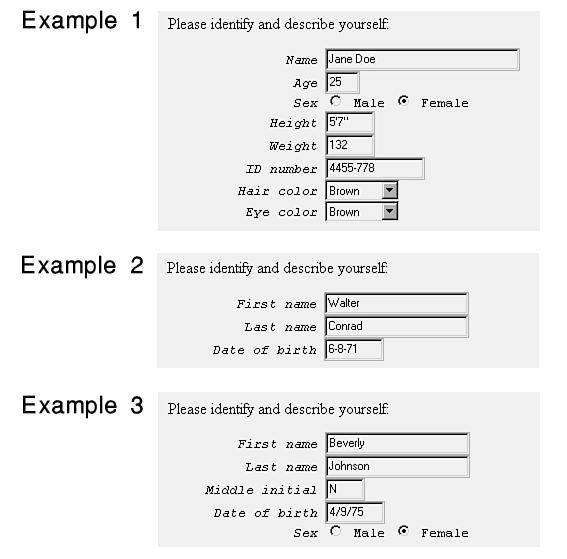
You can ask for personal information in your forms, including age, sex, height, weight, ID number, and hair and eye color. A typical prompt is Enter optional personal information below. Figure 18.8 shows examples of the fields.
Figure 18.8:You can request several types of personal information.
To complete a personal information question:
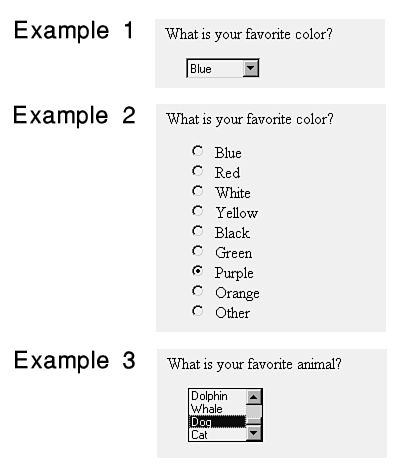
Ask a one of several options question when you want to obtain a single response from a list of choices. An example of a question in this category is What is your favorite color?. Figure 18.9 shows examples of the options for this question.
To complete a one of several options question:
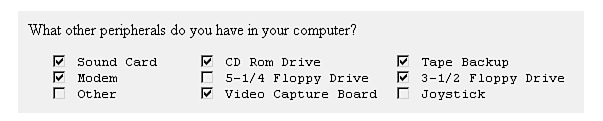
Ask an any of several options question when you want to provide one or more choices from a list of several. A typical question in this category is What other peripherals do you have in your computer?. Figure 18.10 shows an example of the output that you receive.
To complete an any of several options question:
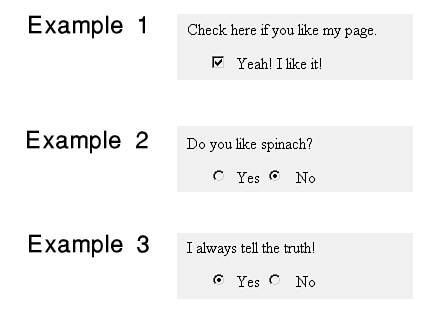
Use a Boolean question when you want to ask a question that requires an either/or response. A typical question is Do you want express delivery? (Additional charges apply). Figure 18.11 shows other examples.
Figure 18.11:Boolean questions can be answered with checkboxes or radio buttons.
To complete a Boolean question:
| NOTE |
The True/False radio buttons are labeled Yes and No. You can easily change their labels to True and False if you want. |
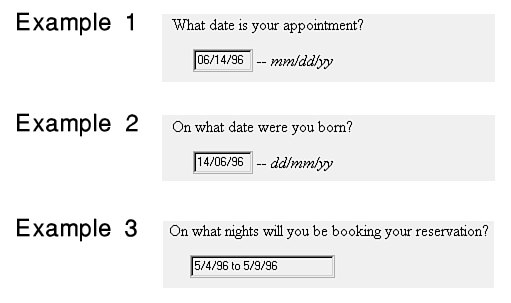
A date question asks the user for a date-a calendar date, not the romantic kind. The user can enter a date response in one of three ways. A typical question is On what date was this product purchased?. Figure 18.12 shows some examples.
Figure 18.12:Users can enter dates in three ways.
To complete a date question:
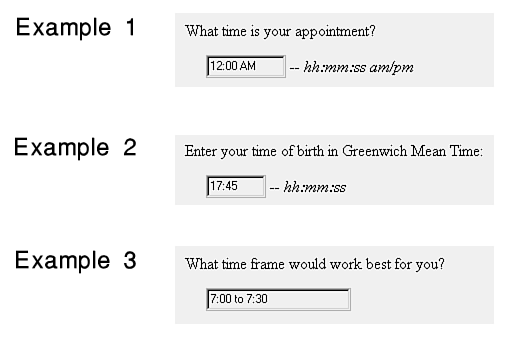
A time question asks the user for a specific time. A typical question is After what time can we contact you at this number?. Figure 18.13 shows other examples.
Figure 18.13:Time can be entered in 12-hour, 24-hour, or free format.
To complete a time question:
Use a range question when you want the user to rate satisfaction or to provide an opinion on something. A typical question is How do you rate our customer service department?. Figure 18.14 shows other examples.
To complete a range question:
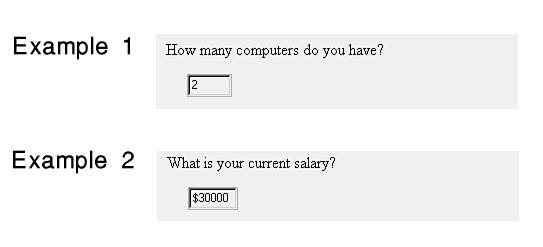
Use a number question when you need numerical input from the user. A typical question is How many fingers are on your right hand?. Figure 18.15 shows other examples.
To complete a number question:
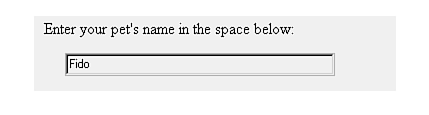
Ask for a string response when you need a single line of text input from the user. A typical question is What is the name of your pet?. Figure 18.16 shows an example.
Figure 18.16:Use a string question when a single-line text response is sufficient.
To complete a string question:
| TIP |
Make sure that the field is long enough to handle anything that your user might enter. This type of question is intended for short responses. If the length of the textbox is too long, it will not be displayed fully in the window of the user's browser. If you think you need a long response, use a paragraph question. |
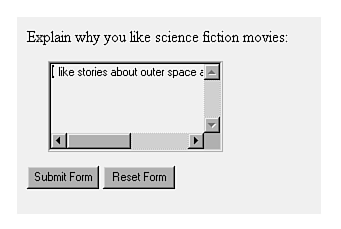
Use a paragraph question when you need a multiline response. A typical question for this category is What is the nature of the problem you are having?. Figure 18.17 shows an example.
Figure 18.17:Use a paragraph question when several lines of text are required for a response.
To complete a paragraph question, simply type a descriptive name for the variable. Then click Next to return to the screen shown in Figure 18.2.
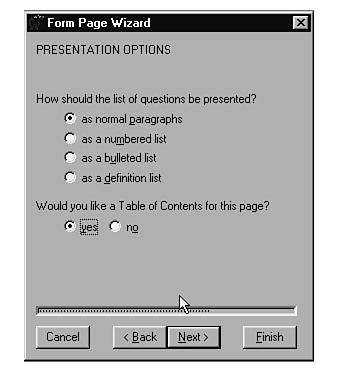
After you complete your question list, select how you want to present it. You use the screen shown in Figure 18.18 to do this.
Figure 18.18:Choose how you want to present your questions.
To present your questions:
| NOTE |
You must edit the table of contents manually to reflect the questions on your form. |
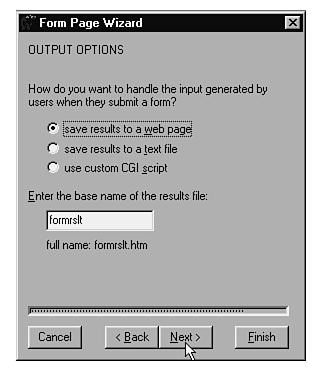
The screen shown in Figure 18.19 asks how you want to retrieve the information from the form. The options are
Figure 18.19:Choose the output option.
Click Finish to create your form. Your page appears in the FrontPage Editor window. At this point, you can save it to your web, or you can copy it to the clipboard and paste it into another page in your web.
Your form is now designed correctly, but you still need to tell your server how to handle it. The form cannot function unless you assign a form handler to it. Some of FrontPage's bots-such as the Save Results bot and the Registration bot-act as form handlers. For you to use these types of bots, your Internet Service Provider or target server must have the FrontPage Server Extensions installed. If that is not possible, you can assign a custom CGI script to process the form for you.
You can design forms quickly and easily with the Form Page wizard. Start with a list of questions, and decide how you want to display them. The wizard does the rest.
In this chapter, you learned how to design a customized, interactive form using the FrontPage Form Page wizard to ask a variety of questions. Based on your selections, the wizard tailors your form so that you can gather information from visitors to your site.
The next two chapters help you edit your form fields and assign form handlers to them. To learn more about the fields in your form, refer to Chapter 19, "Fields-The Building Blocks of Forms." To learn how to assign a form handler to your form, refer to Chapter 20, "Runtime Bots: The Heartbeat of FrontPage Forms."
| Q: | I designed a form and put it on my web site, but it does not do anything when I try to test it. What is happening? |
| A: | If you assigned a form handler to your form, check whether the FrontPage Server Extensions or custom CGI scripts have been installed on your remote server. You might need to coordinate this with the server administrator at your site. Refer to Chapter 24, "Working with the FrontPage Servers," for more information. |
| Q: | Which is the better choice to use when I specify a results file-web pages or text files? |
| A: | Generally, it is more efficient to store your results files as text files. When you store them in a web page, it requires extra time for the server to process and format the results. You can find more information on the different types of results files in Chapter 20. |
| Q: | Are Boolean questions stored as 1s and 0s or as "True and False"? |
| A: | You learn more about configuring form fields in Chapter 19. |