"I've got sticky notes all over my monitor! Aaagh!"
Sound familiar? As the number of pages in your web grows, you will discover that it is hard to keep track of which pages you need to add or revise-especially if your web has many pages or if multiple people work on them at once. It also adds to the confusion if you lose track of who is doing what and what needs to be done.
Don't get me wrong: Sticky notes are one of the greatest inventions to come around in a long time, and I use them a lot. I use them less now, however, because I use FrontPage to design my Web site. I use the To Do list to keep track of things for me. I can see through to my monitor screen again.
Think of your To Do list as the personal information manager of Web development. You use the To Do list to track what needs to be done on a Web site or on a particular page. If you are developing a site in which multiple authors work on the same web, you can learn quickly what tasks you are responsible for. You can use the To Do list to remind yourself of whom you need to consult about your pages, attach notes to other authors about what they need to do on the page, and so on. Essentially, anything you put on a sticky note can go on your To Do list. You can get those sticky notes off your monitor and into the computer where they belong!
Suppose, for example, that three people work on a Web site. The administrator develops the overall content. Another author adds the artwork. The third author adds special HTML code or enhanced features to the pages. The To Do list helps you coordinate what these folks have to do.
Tasks are items that need to be completed on a page. Each task has a name, a responsible person, and a description. You can make the task as simple or as detailed as you like. For example, if you work on your own, you can enter a task such as Complete survey page. Because you are responsible for the entire job, you know what you have to do.
When you coordinate with others on a page, you might have an idea that falls outside your normal area of expertise. It is better to assign that task to someone else who can handle it better. You can attach the task to the page-along with a description of your idea-and assign it to another author.
When you add tasks to your To Do list, keep the list as compact as possible. For example, if five items on a page need to be completed and you are responsible for three of them, bundle those three tasks into one description. You can always edit the description after you complete one of the tasks. Otherwise, you can imagine how big a To Do list gets if you enter five tasks for each of 100 pages. In that case, the To Do list is managing you. Remember: The To Do list is there to save you time-not to create more work.
As a general rule, if an item depends on the actions of another individual-even, perhaps, a customer-it is a good idea to add a task for it.
There are several ways to add tasks to a To Do list. Some wizards, such as the Corporate Presence Wizard, add them automatically. In other cases, you add tasks manually after you examine the pages to see what needs to be done.
You can add a task to a To Do list in several ways:
You can use the FrontPage Explorer to add a task to any page, graphics image, or other type of file in the current web:
If you're working on a page and don't have the time to complete
it, you can use the FrontPage Editor to add a task to the currently
opened page.
| NOTE |
You cannot add a task for an image or other type of file from the FrontPage Editor. |
| NOTE |
When you add a task from the FrontPage Editor, the page to which you add a To Do task must exist in the currently open web. Sometimes, you might open a page from one web and not save or close it before you open another web. When you return to that page in the FrontPage Editor and try to add a task to it, you get an Unable to Open To Do List message. To resolve this problem, open the web from which you opened the page and add the task again. If you add a task to a page that has not yet been saved to the web, you are prompted to save the page to the web before you add the To Do task. Choose Yes to save the page to the web, and add the task. Choose No if the web to which you want to save the page is not currently open. Open the web, save the page to it, and then add your To Do task. |
Sometimes, you might have tasks of a general nature that apply to more than one page. You can add a task from the To Do list itself. Tasks added this way do not attach to a particular page.
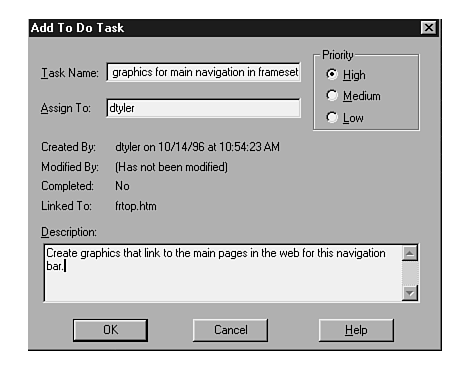
To add tasks of a general nature, use the Add button in the To Do List dialog box. The Add To Do Task dialog box appears, as shown in Figure 6.4.
Figure 6.4 : You can enter tasks that are not linked to any page or file in your web.
The Add To Do Task dialog box enables you to assign a name for the task, assign an author, prioritize the task, and describe what is to be completed on the page. To add this information,
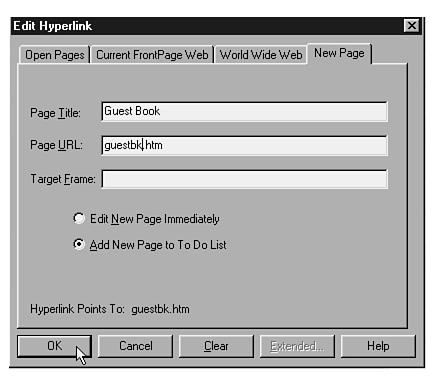
In Chapter 7 "Getting from Here to There," you will learn how to create a link to a new page. You can create a link to a new page from the Create Hyperlink dialog box and from the Edit Hyperlink dialog box shown in Figure 6.5. You can add a new page to the To Do list rather than edit it immediately. You do this with the New Page tab of the Create Link dialog box or the Edit Hyperlink dialog box. Click the Add New Page to To Do List button. The FrontPage Editor allows you to choose a page template on which to base the page, prompts you to enter a title and name for the new page, and then saves the page to your web. A task is added to the To Do List as specified.
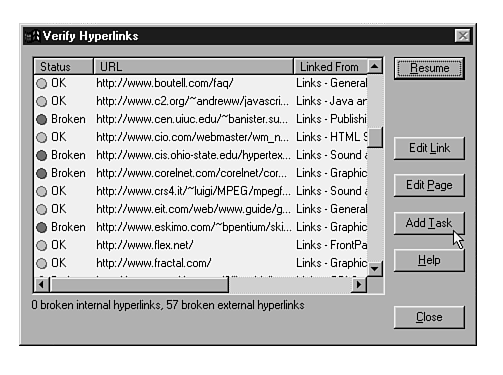
In Chapter 28, "Testing and Publishing Your Web," you will learn how to verify internal and external links before you publish your web. You can add broken links to the To Do list with the Add Task button in the Verify Hyperlinks dialog box (see Figure 6.6). You can add tasks to either internal or external links in this manner.
Figure 6.6 : You can add a task automatically when you verify the links in your web.
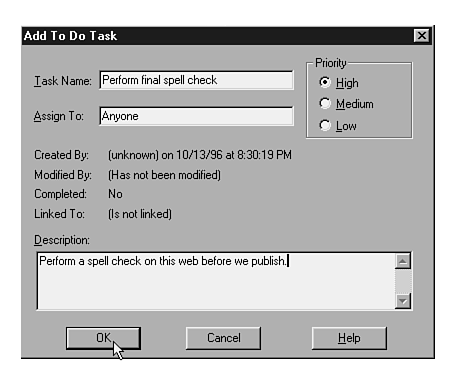
In Chapter 28, you will learn how to perform across-the-web spell-checking. This is a handy way to give your web a final once-over before you publish it. To add tasks for the pages that contain spelling errors, simply click the Add pages with misspellings to the To Do List checkbox in the Spelling dialog box, shown in Figure 6.7, before you start your spell-check.
Figure 6.7 : You can add To Do tasks when you perform across-the-web spell-checking.
Once you add tasks to the To Do list, you can use it to keep track of what has been done or who is assigned to a particular task. You must have an open web to use the To Do list. When a web is open, you can show the To Do list from the FrontPage Explorer or the FrontPage Editor. In either case, you use one of the following two procedures:
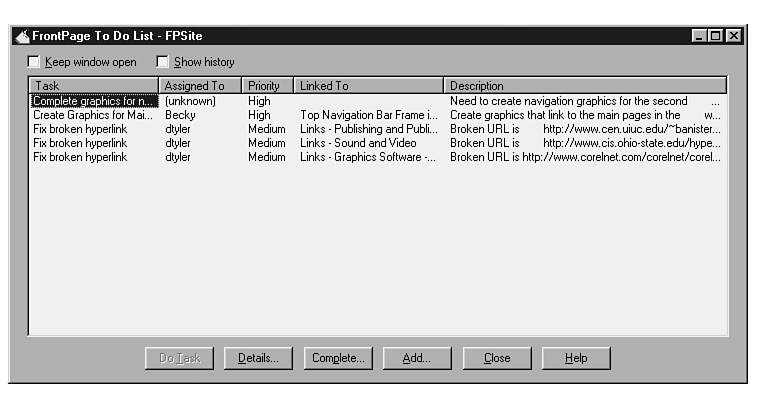
Either procedure opens the To Do List dialog box. (See Figure 6.8.)
Figure 6.8 : The To Do list helps you keep track of what you need to complete on your pages.
Two checkboxes appear at the top of the To Do List dialog box. Check the Keep window open box if you want to keep the To Do list open while you complete tasks. If you do not choose this option, the To Do list closes when the page associated with a particular task is opened. Check the Show history box if you want to view both complete and incomplete tasks.
The To Do list arranges tasks in columns. You can sort the tasks by category by clicking the appropriate column heading. The categories are
Six buttons appear at the bottom of the To Do List dialog box:
| NOTE |
When you add a task from the To Do List dialog box, it is not linked to a page. You can use this feature to enter general tasks that are applicable to multiple pages or to add general reminders. |
Task details are the elements that make up a task: its name, the person assigned to it, and its description. Sometimes, you need to modify a task, especially if it was added automatically by a wizard or through the Create Link or Verify Links dialog boxes. To modify a task:
To complete a task, it is best to open the page from the To Do list itself. It is much easier to keep track of the tasks this way. This is a good habit to get into if many authors work on the same web. The To Do list tracks who is assigned to a page or a task.
To open a page from the To Do list:
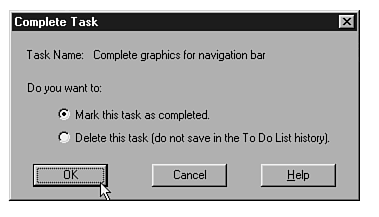
What if you forgot to open the page from the To Do list and completed what you were supposed to do? What if you mistakenly added a task to the wrong page? You can use the Complete Task button in the To Do list to remedy either situation:
Usually, when you choose a task from the To Do list, it automatically closes. If you kept the To Do list open while you worked, however, you can close it by clicking the Close button in the To Do List dialog box.
The To Do List dialog box has no Print button. To print your list, you need to use a roundabout method. The items in your To Do list exist in a web file in the _vti_pvt directory on your server. Suppose that you installed your FrontPage web content to a directory called D:\FrontPage Webs\Content. The web is named PersonalWeb. The To Do list HTM file, then, appears in the D:\FrontPage Webs\Content\PersonalWeb\ _vti_pvt\_x_todo.htm directory.
If you want to print the To Do list from the FrontPage Editor, you can open the file from the currently open web by following these steps:
To Do lists help make Web development much easier. Your desk will be clear of note paper, and you will be able to see your monitor. Keep in mind that you are in charge of your To Do list-not the other way around. Keep items as basic as you can while still getting your intent across. You are sure to discover that To Do lists are excellent management tools.
In this chapter, you learned how and when to add tasks to a To Do list in several ways. Whether you add tasks manually or automatically, you can keep track of your Web projects much better with a To Do list.
In the following chapters in this book, you will learn how to create basic pages. You will progress from basic concepts, such as entering text on your pages, to organizing information in lists and adding images.
| If I mark a task as completed or delete it by mistake, is there any way to get it back in the To Do list? | |
| No. You must enter the task again if you want it to reappear as an unfinished task. | |
| When an author logs in to a web, is there an easy way to tell how many tasks he has to complete in that web? | |
| Yes. There can be many tasks in the To Do list. The easiest way to find the tasks assigned to a particular author is to sort the list by the Assigned To field. This groups together all the tasks assigned to an author. | |
| In the examples in this chapter, three authors are assigned to the web. What if one author quits? Can the other authors complete his tasks? | |
| Yes. An author can modify, complete, or delete a task assigned to another author. The procedures are the same as discussed in this chapter. | |
| I want to assign a task to another author, but I do not know who the other authors are. How can I get this information? | |
| The Web administrator assigns the authors for the web. Unfortunately, the only way to view the authors assigned to the web is by using the Tools | Permissions command, which only
an administrator can use. To remedy this, the administrator can add a general task to the To Do list by using the Add Task button in the To Do List dialog box. He might create a task like this:
Task Name: Authors assigned to this web. |